
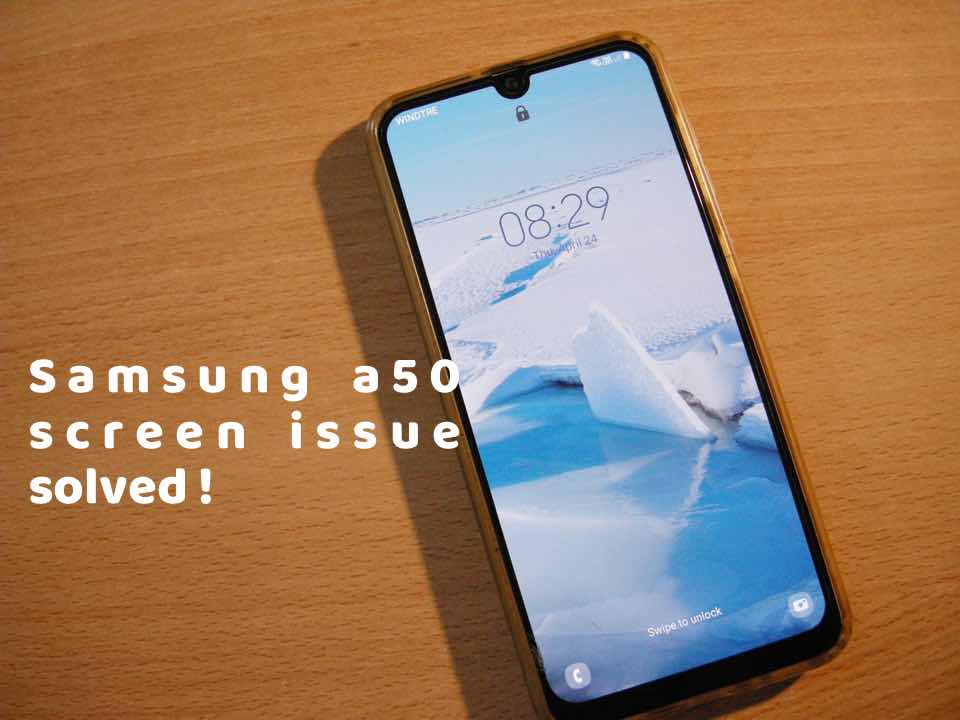
Samsung A50 has a display bug: it turns on and off randomly on the lock screen in rapid flickers at random, all by itself, making it almost unusable.
If you’re experiencing this problem of the lock screen loop, with the screen flashing on and off, locking and unlocking itself, I have the solution for this bug.
The fix is simple, hidden in a specific setting I discovered. No repair is required, it’s entirely free, you can do it too, just follow my instructions in this post. It’s worth it because the A50 is a little good phone, which can last you still many years to come.
I found it the hard way myself, after months if not years of frustration with my Samsung a50. People online try endlessly to disable any possible settings, like lift to wake, face recognition, sleep mode, always on, notifications, and so on.
Some people even think it’s tied to network switching when outside, or to other issues like ambient light sensor, and they spend more money by having parts of their phone substituted. Nothing worked, and someone maybe even decided to give up and change phones.
Index of this little guide:
- Until I discovered the setting that solved it all 🙂
- Navigate to the Settings menu and go to Advanced features
- Locate the tab nobody imagined
- Consider buying me a coffee without buying me a coffee
- To sum up: a Step-by-step how to fix the Samsung A50 screen bug:
- FAQ – Samsung A50 Flickering Screen Issue:
Until I discovered the setting that solved it all 🙂
Frankly, I think it’s unfair that Samsung buried a small setting in a way that is difficult to find, and did not provide any advice on official channels after so many people complained.
It is possible that the whole bug is both a hardware AND a software issue, but switching off that setting proved to be resolutive, so I think that overall it’s a software bug that has never been acknowledged and solved.
Check my solution below.
Navigate to the Settings menu and go to Advanced features
First thing, go to Settings, and scroll down until you find, isolated on its own with a yellowish-orange icon, the menu of Advanced features.
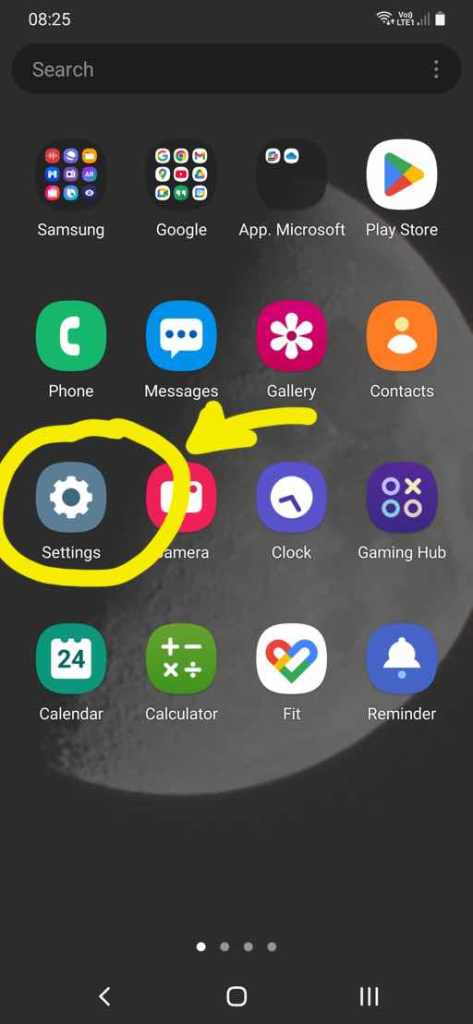
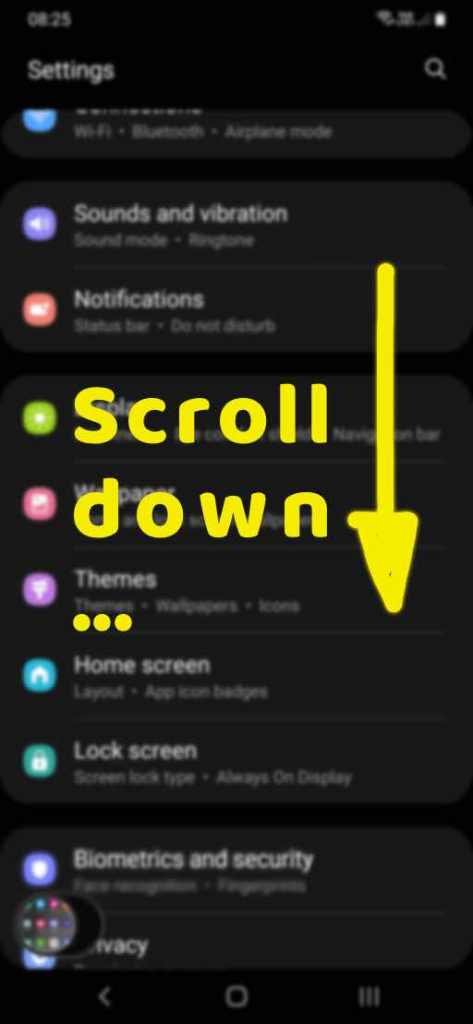
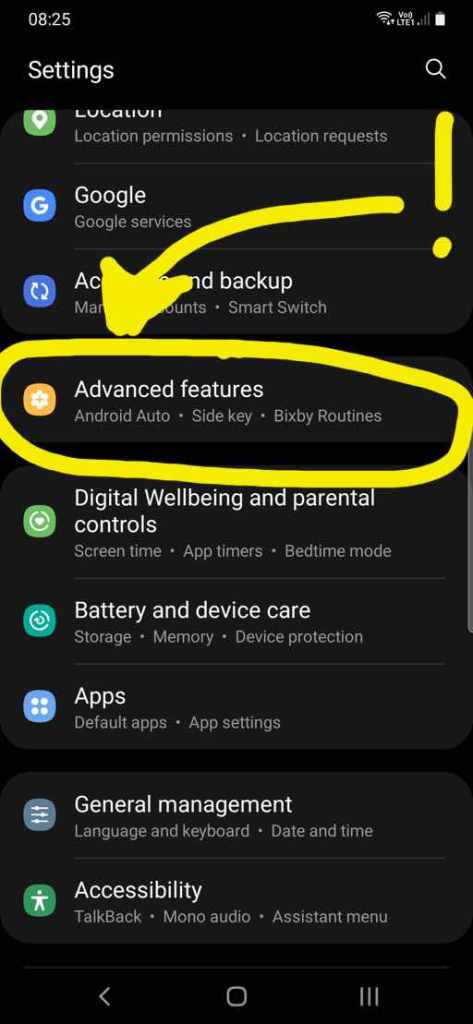
OK, you’ll say, “I already went here before, and found nothing useful”. Look again. The little bastard feature we want to disable is hidden under an innocent name.
Locate the tab nobody imagined
While you are in Advanced features, scroll down until you find the tab labeled Accessories:
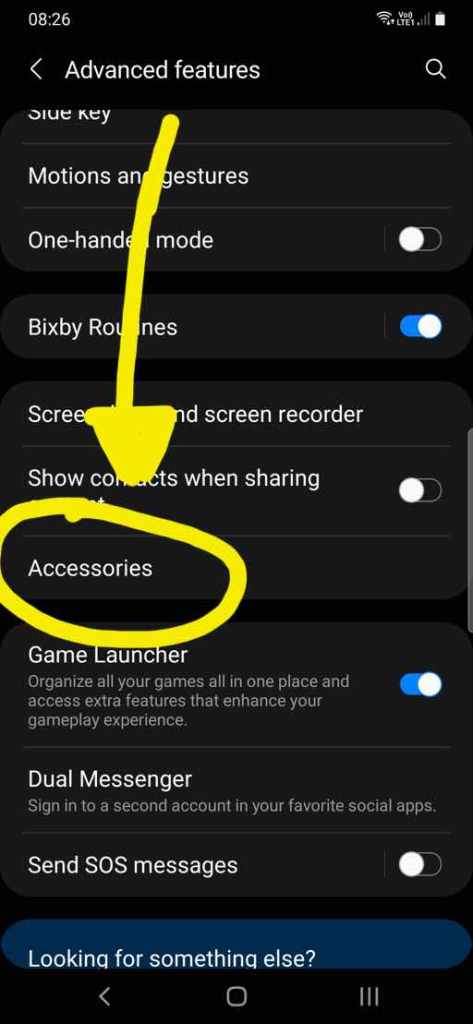
Yes, dear fellow, who on Earth thought that the issue is under “Accessories” settings?? But here it is. Hidden in plain sight, exactly where nobody would have looked.
“Accessories” here is meant to be tied to those external magnetic covers, the ones that fold around your smartphone, and thanks to a little magnet in the cover they couple with magnets in your smartphone and command the lock and unlock of the screen.
It doesn’t matter if you don’t have or don’t use a magnetic cover. It seems there is an issue or bug of the software, that fires the lock / unlock regardless of a magnetic cover being attached to the phone or not.
There are only 2 settings in the Accessories tab. If you go there and find one or both of the 2 settings active (if the switch icon is blue), TURN THEM OFF NOW! When you have those settings icons greyed out, you’ll be happy.
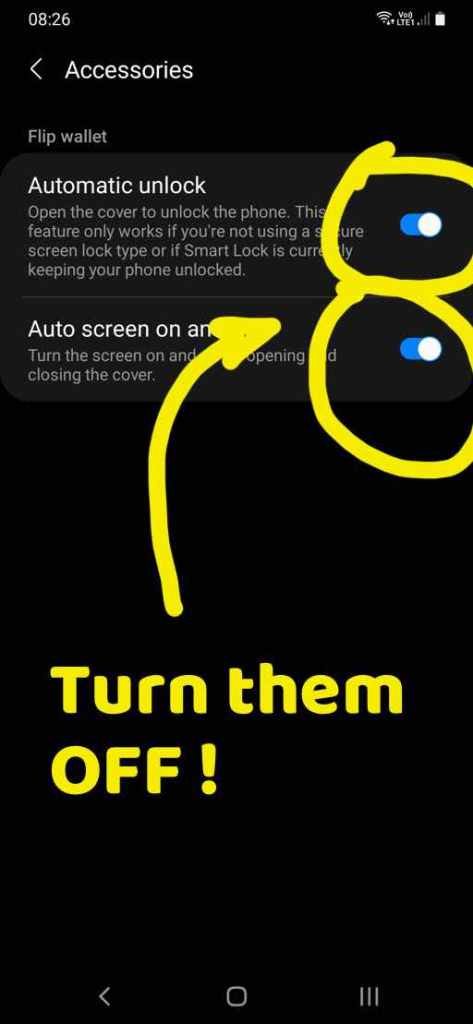
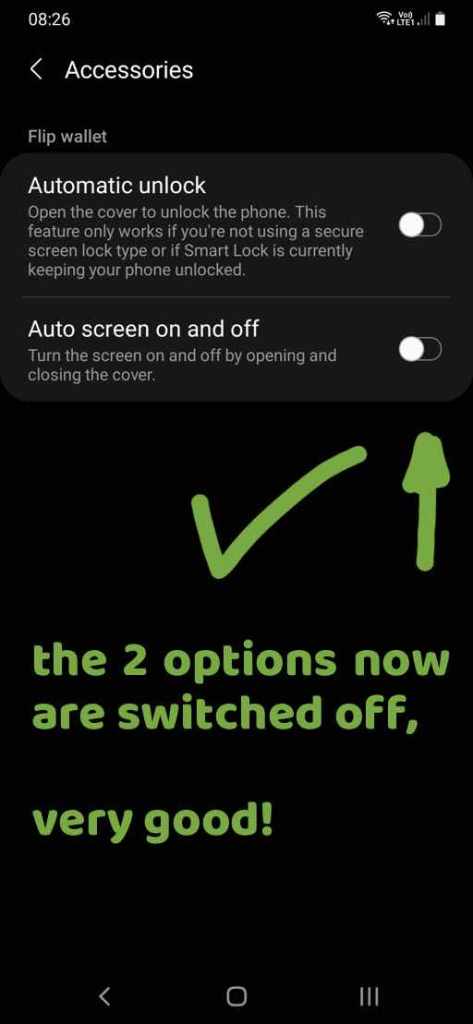
Disabling both options will solve the issue. I recommend restarting the phone, since it’s always a good thing for the Android operative system.
You’ve done it, my friend! Your Samsung A50 is fixed. No more annoying automatic flick screen with the random lock and unlock.
Consider buying me a coffee without buying me a coffee
I loved helping you solve the A50 issue, as I knew how frustrating it was.
Would you like to manifest your gratitude? I appreciate it a lot, thank you by heart ❤ !
Here’s a way I found that’s a bit unconventional and does not involve the transfer of money from your part to mine. Listen, it’s easy:
Instead of the traditional “buy me a coffee” thing, why don’t you buy yourself a website?
Yes, because I promote a great web hosting company (a hosting is literally where your website has its home online): WordPress.com.
If you make a purchase through my link, I get a commission. It’s an affiliate marketing mechanism. So, a sort of modern version of a coffee.
Here’s how to get WordPress.com:
–> More infos on my dedicated page here.
Nowadays, having a website is almost a necessity. It’s your own space on the Internet where nobody can ban you, it’s your little own reign. Make it what you want: a blog to share your passion, an e-commerce site for your business, or the next Big Thing. A website is a business, and if you are serious about it, it can make you rich.

And creating a website today is straightforward, it doesn’t require coding. You can make beautiful things just by arranging pre-formatted parts of the layout. It’s called block editor, a great feature of the wordpress architecture. I even made a YouTube video showcasing the exceptional features of WordPress.com hosting! Watch it here.
Then, fill your website with your unique content. Be useful to others like my little Samsung A50 hack has been for you. The secret of success is so simple: be helpful 🙂
MoneyPlato.com (this website of mine) is built on WordPress.com, and I keep choosing WordPress.com for other projects and other clients’ projects to build.
Again, a big thank you, and enjoy your now perfectly functional a50 phone!
Let me know in the comments how do you feel now that your smartphone is back 😉
To sum up: a Step-by-step how to fix the Samsung A50 screen bug:
- Open your Settings
- Scroll to Advanced features (yellow-orange icon)
- Tap on Accessories
- You’ll find two options enabled for magnetic covers on flip wallet.
- Turn them both OFF
- Restart your phone
Done! The issue should disappear immediately.
FAQ – Samsung A50 Flickering Screen Issue:
Q: What exactly causes the screen to flicker and lock/unlock by itself?
A: It’s likely a software bug related to the “Accessories” settings, especially tied to magnetic covers. Even if you’re not using a magnetic case, this feature may randomly activate and interfere with screen behavior.
Q: Do I need to buy a new phone or replace parts?
A: No! This fix is 100% free. No repairs, no spare parts. Just go to Settings > Advanced Features > Accessories and disable the two switches. Restart the phone. Done.
Q: I don’t even use a cover. Why was this setting affecting my phone?
A: That’s the strange part. It seems the bug can trigger on any A50 unit regardless of accessory use. Disabling it fixes the issue anyway.
Q: Is this a permanent fix?
A: So far, yes. Many users (me included!) have confirmed that disabling those settings stopped the flickering entirely, with no need for further action.
Q: Will it affect anything else on my phone?
A: No. Unless you actually use a magnetic cover that interacts with your screen, disabling those options won’t affect your phone’s functionality at all.
Q: Can I help you back somehow?
A: Absolutely! I don’t ask for money – but if you appreciated this solution, consider checking out my WordPress.com hosting promotional page.That’s my version of a “Buy me a coffee”. Cheers!









 Money Plato
Leave a comment